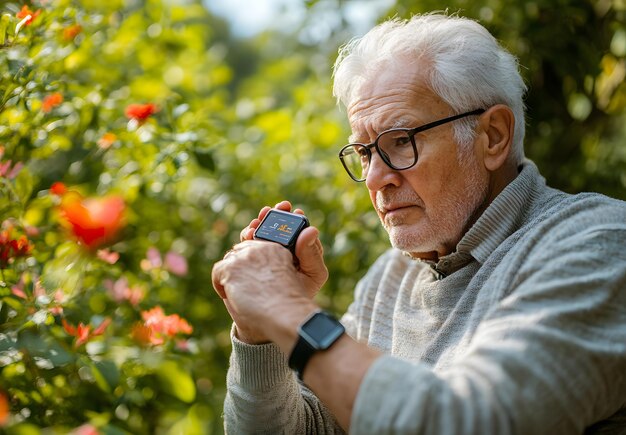
GPS Device Updates: What Seniors Need to Know 📍
GPS devices—whether built into smartphones, dedicated navigation units, or smartwatches—rely on regular updates to stay accurate and secure. If you own a GPS device, understanding when and why updates matter can help you get better navigation, avoid security risks, and avoid confusion when your device behaves unexpectedly.
What GPS Updates Actually Do
GPS updates fall into two main categories: map data and software.
Map updates refresh the roads, addresses, and points of interest your device knows about. New roads appear, old routes change, businesses relocate, and street names update. Without fresh map data, your GPS might direct you on outdated routes or fail to recognize newer areas entirely.
Software updates patch security vulnerabilities, improve how the device processes satellite signals, fix bugs that cause crashes or inaccurate directions, and sometimes add new features. These updates run in the background—you may never notice them, but they keep your device working reliably.
Why Updates Matter for Everyday Use
A GPS device with outdated maps might confidently send you down a road that no longer exists or miss a shortcut that opened last year. In rural areas or newer developments, the difference between current and outdated maps can be the difference between an accurate route and a dead end.
Security is equally important. GPS devices often connect to the internet, receive location data, and store your travel history. Outdated software can expose these connections to hackers. For seniors who rely on GPS for independence and safety, a compromised device poses real risks.
Outdated software can also drain your battery faster, make the device slower to respond, or cause features to stop working altogether.
How Updates Work (And What Varies by Device)
The update process differs depending on what type of GPS device you own:
| Device Type | How Updates Arrive | Frequency | Effort Required |
|---|---|---|---|
| Smartphone (built-in GPS) | Automatic, or manual via App Store/Play Store | Monthly to quarterly for maps; varies for OS | Often automatic; may require restart |
| Dedicated GPS unit (Garmin, TomTom, etc.) | Connect to computer or WiFi; manual download | Varies; quarterly to annually | User initiates; takes 15–60 minutes |
| Smartwatch with GPS | Automatic via paired phone or WiFi | Monthly to quarterly | Often automatic |
| Car GPS/Dashboard unit | Via USB, SD card, or WiFi | Quarterly to annually | Varies; check manufacturer instructions |
Some devices update automatically when connected to WiFi and power. Others require you to actively download and install. The key is knowing which type you own and what your device expects from you.
Signs Your GPS Needs an Update 🔄
- Poor accuracy: Routes seem wrong, or the device places you blocks away from your actual location
- Missing new roads or addresses: Destinations you know exist don't appear in search results
- Slow performance: The device lags, freezes, or takes a long time to calculate routes
- Failed connections: The device won't sync with your phone or connect to WiFi
- Battery drains unusually fast: Outdated software can be inefficient
- Warning messages: Your device explicitly tells you an update is available
Practical Steps for Updating
For smartphones: Open your maps app (Google Maps, Apple Maps, Waze, etc.) and check the app store for updates. Most will update automatically if you enable that setting.
For dedicated GPS units: Visit the manufacturer's website, download the latest map and software files to your computer, and follow their specific instructions for transferring files to your device. This usually involves connecting via USB. Expect it to take 15 minutes to over an hour depending on file size.
For smartwatches and car units: Check your user manual or manufacturer's support page for the exact method—it varies widely.
General rule: Keep your device charged and on a stable internet connection while updating. Don't interrupt the process or power off the device mid-update.
What to Evaluate for Your Situation
The right update strategy depends on how often you rely on your GPS, where you travel, and whether your device updates automatically.
Ask yourself:
- Do you use GPS daily for navigation, or only occasionally?
- Do you travel in areas that develop quickly (new suburbs, urban centers)?
- Does your device update automatically, or do you need to remember to do it manually?
- How comfortable are you connecting devices to a computer or troubleshooting connection issues?
Seniors who travel frequently or live in areas with rapid development benefit from more frequent updates. Those who navigate the same familiar routes may notice less difference. Either way, checking for updates once or twice a year is a reasonable baseline to avoid falling too far behind.