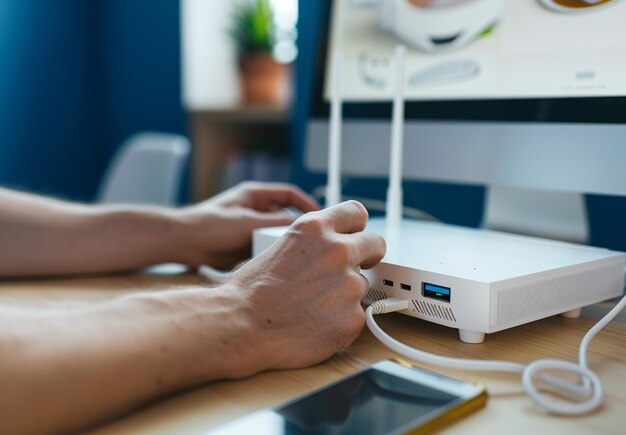
How to Fix Wi-Fi Connection Problems: Practical Solutions That Work
Wi-Fi connectivity issues are frustratingly common, and the fix often depends on what's actually causing the problem. Before paying for a service call or replacing equipment, understanding the landscape of troubleshooting steps—and which factors determine whether they'll work for you—can save time and money. 🌐
Understanding What Goes Wrong with Wi-Fi
Wi-Fi problems fall into a few broad categories. Your router may not be broadcasting signal strongly enough. Your device may not be connecting properly to that signal. Interference from other devices or networks could be disrupting your connection. Your internet service itself might be down. Or your router firmware might need updating. Each requires a different fix.
The variables that influence which problem you're facing include your physical distance from the router, the number of devices connected, what other wireless devices are nearby (microwaves, cordless phones, neighboring networks), your router age and condition, and whether your service provider's infrastructure is experiencing issues.
The Step-by-Step Troubleshooting Path
Start with the Simplest Check
Before anything else, confirm you actually have an internet connection. If your modem (the device that connects to your service provider) isn't receiving signal, no amount of router troubleshooting will help. Check whether the modem's lights indicate an active connection. If not, this is a service provider issue, not a Wi-Fi issue.
Restart Your Equipment
Power-cycling your router and modem resolves a surprising number of connection problems—roughly 30–40% of reported issues, according to general tech support experience. Turn off both devices, wait 30 seconds, and restart the modem first, then the router. This clears temporary software glitches and forces a fresh connection to your service provider.
Check Your Physical Setup
Wi-Fi signal weakens with distance and obstacles. Your router broadcasts more effectively when:
- Placed in a central, elevated location (not on the floor or hidden in a closet)
- Away from metal objects and water (fish tanks, filing cabinets)
- Positioned to minimize walls and interference from neighboring networks
If your house is large or has many walls, signal may simply not reach certain areas. This is a physical limitation, not a malfunction.
Look for Interference
Wi-Fi operates on crowded frequency bands (typically 2.4 GHz or 5 GHz). Microwave ovens, cordless phones, baby monitors, and neighboring Wi-Fi networks all broadcast on similar frequencies. If you experience slowdowns during certain times (when your neighbor's network is most active, or when others use the microwave), interference is likely.
Many routers let you manually select a less-crowded Wi-Fi channel through their settings. Switching channels can improve speed and stability if interference is the culprit.
Update Your Router's Firmware
Router manufacturers release firmware updates that patch bugs, improve performance, and sometimes add new features. An outdated router may struggle to maintain stable connections, especially if many devices are connected simultaneously. Check your router's admin panel or the manufacturer's website for available updates.
Verify Your Device Connection
Sometimes the problem isn't your network—it's how your device connects to it. Forget the network on your device, then reconnect by re-entering your Wi-Fi password. This resets the connection and often fixes temporary glitches.
If only one device has trouble, the issue is device-specific (outdated drivers, corrupted settings) rather than network-wide.
| Troubleshooting Step | When It Works Best | What It Fixes |
|---|---|---|
| Power-cycle modem/router | General sluggishness, frequent disconnects | Temporary software glitches |
| Reposition router | Weak signal in distant rooms | Physical obstruction and distance issues |
| Change Wi-Fi channel | Slowdowns during peak times | Frequency interference |
| Update firmware | Stability issues on older routers | Known bugs and compatibility problems |
| Restart device connection | Single device won't connect | Device-level configuration issues |
When to Call Your Service Provider
If troubleshooting doesn't help, the issue may be upstream—with your modem's connection to your service provider's network. Signs include:
- The modem lights indicate no internet signal (even after restart)
- All devices show the same connection problems
- You're experiencing frequent complete outages, not just slowness
- The problem started after service was installed or changed
Service providers have tools to check signal strength, line quality, and whether equipment is provisioned correctly. A qualified technician can diagnose whether your modem, line, or their infrastructure is at fault.
Variables That Affect Your Specific Outcome
Whether these steps solve your problem depends on:
- Your network's age (older routers may lack firmware updates or modern standards)
- Your home's physical layout (dense walls block signal more than open floor plans)
- The number of devices you're connecting simultaneously
- Your service provider's infrastructure in your area
- Whether interference is present in your neighborhood
- Your technical comfort level (some fixes require accessing router settings)
The right solution for someone in a small apartment with three devices differs from someone in a large house with ten connected devices, a microwave running frequently, and neighbors with strong Wi-Fi signals.
Troubleshooting is a process of elimination. Start with the simplest steps, and only move to more complex interventions if those don't work. Most connection problems resolve at one of the early stages—but which stage depends on what's actually broken in your specific setup. 📶